
Feeling a bit overwhelmed when you first open Illustrator? The screen full of buttons makes you feel like you’re walking into a new restaurant and don’t know where to start? Don’t panic! Today, we’ll guide you through the ins and outs of this design tool in just 5 minutes, so you can start drawing right away.
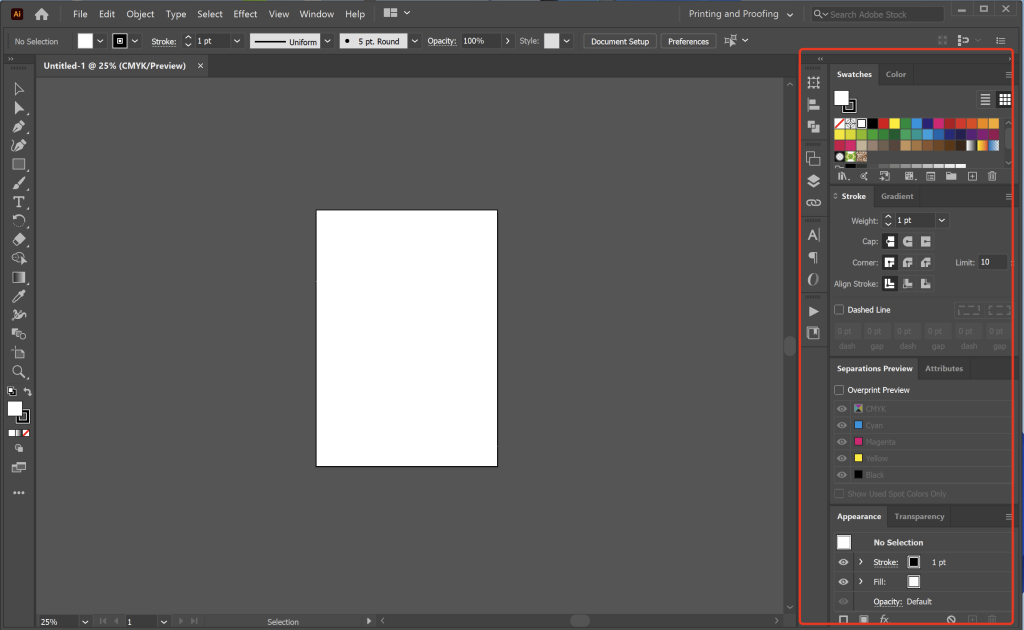
First, familiarize yourself with the interface: Five areas to help you understand the interface in seconds.
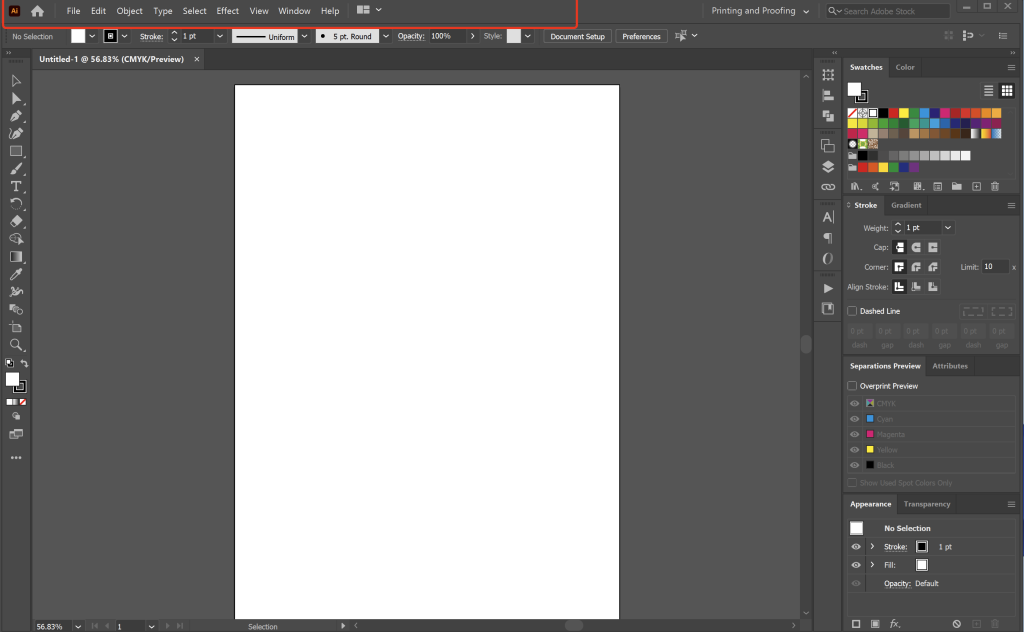
Menu bar
The first thing you see when you open the software is the menu bar, at the very top, categorized like a restaurant menu. Options like File, Edit, and Object are like categories such as “Main Course,” “Stir-fry,” and “Dessert.” To create a new file, click “File,” and to copy and paste, find “Edit.” You don’t need to memorize them; just click and scroll when you need them.
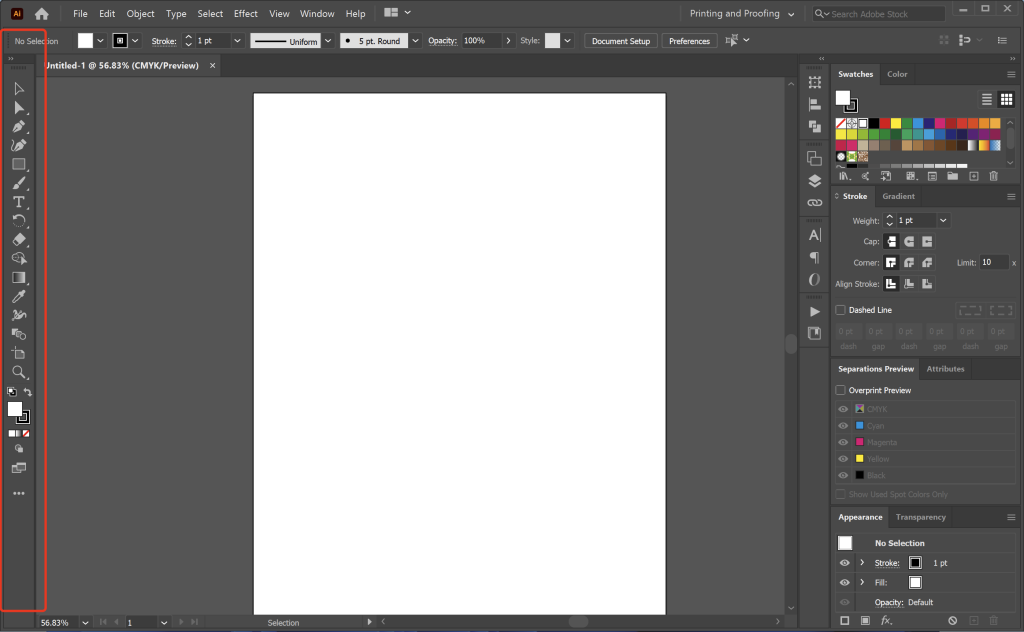
工具栏
The toolbar on the left is the real highlight! It’s like your drawing toolbox, with pencils, pens, and shape tools all ready to be used. The most commonly used ones are just a few: the black arrow (selection tool) is like a “finger,” used to grab and move objects; the pen tool is like a “drawing pen,” super useful for drawing curves; the rectangle and circle tools allow you to draw shapes with a single click. Beginners should practice these three first, and the basic operations will be sufficient.
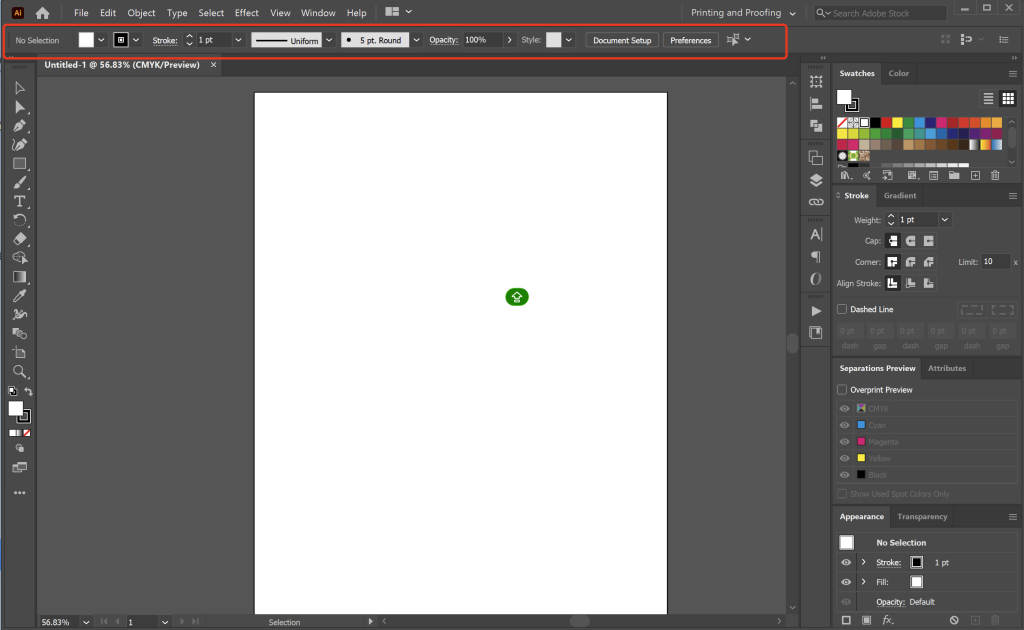
Control Panel
The row below the top menu bar is the control panel, a helpful little assistant. Whichever tool you select, its corresponding settings will be displayed here. For example, if you select a brush, you’ll see options for adjusting thickness and color; once you’ve drawn a shape, you can directly change its size and angle without having to search for settings buttons everywhere.
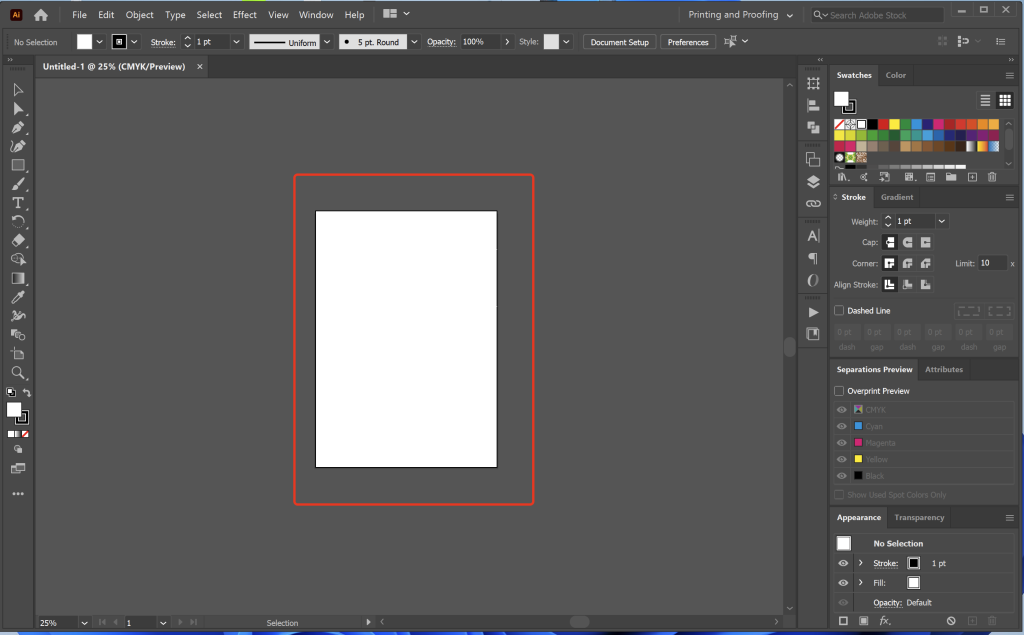
Canvas
The largest white area in the middle is the canvas, your “drawing paper.” Use the mouse wheel to zoom in and out, and hold down the spacebar to drag and move the drawing, like using a magnifying glass to move it across the paper. Remember to zoom in and out frequently to check the overall effect, so you don’t get lost in your work.
Panel group
The row of panels on the right is a “toolbox,” with commonly used ones including Color, Layers, and Properties. Layers are like “transparent plastic sheets,” allowing you to draw in separate layers without them interfering with each other; the Color panel lets you change the pen color with a single click, much more convenient than a color palette. Panels can be dragged around freely, and you can turn off those you don’t use often to keep the interface clean.
Essential for beginners: Master these three tools first.
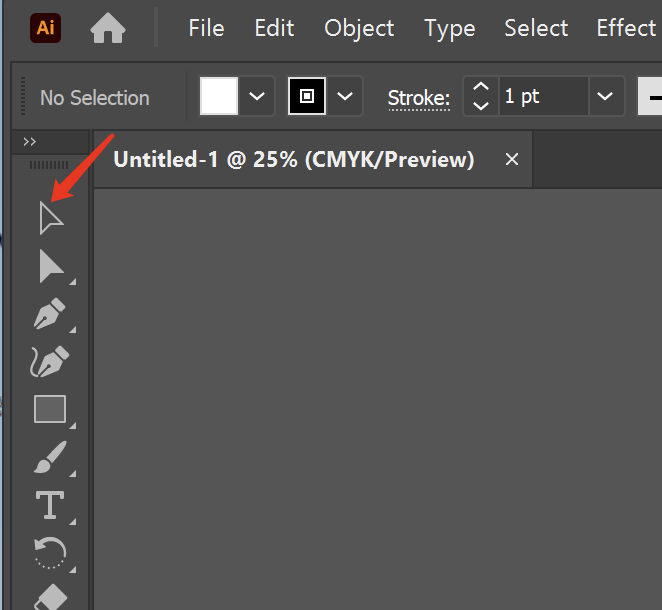
The selection tool (black arrow) is your most frequently used “hand”. Simply click on a shape to select it, then drag and move it freely. Holding down the Shift key while dragging allows you to zoom in and out proportionally, which is extremely useful when drawing squares or circles, preventing them from becoming skewed.
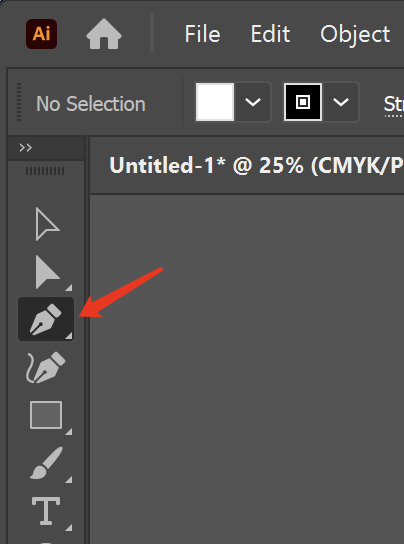
The pen tool looks difficult, but it’s actually quite simple; it’s like a “numerical pen.” Click once to draw a straight line, click and drag to create a curve, and press Ctrl to switch to the “hand” tool to move the canvas without switching tools repeatedly. Beginners should start by practicing with simple logos; the more you draw, the better you’ll get at it.
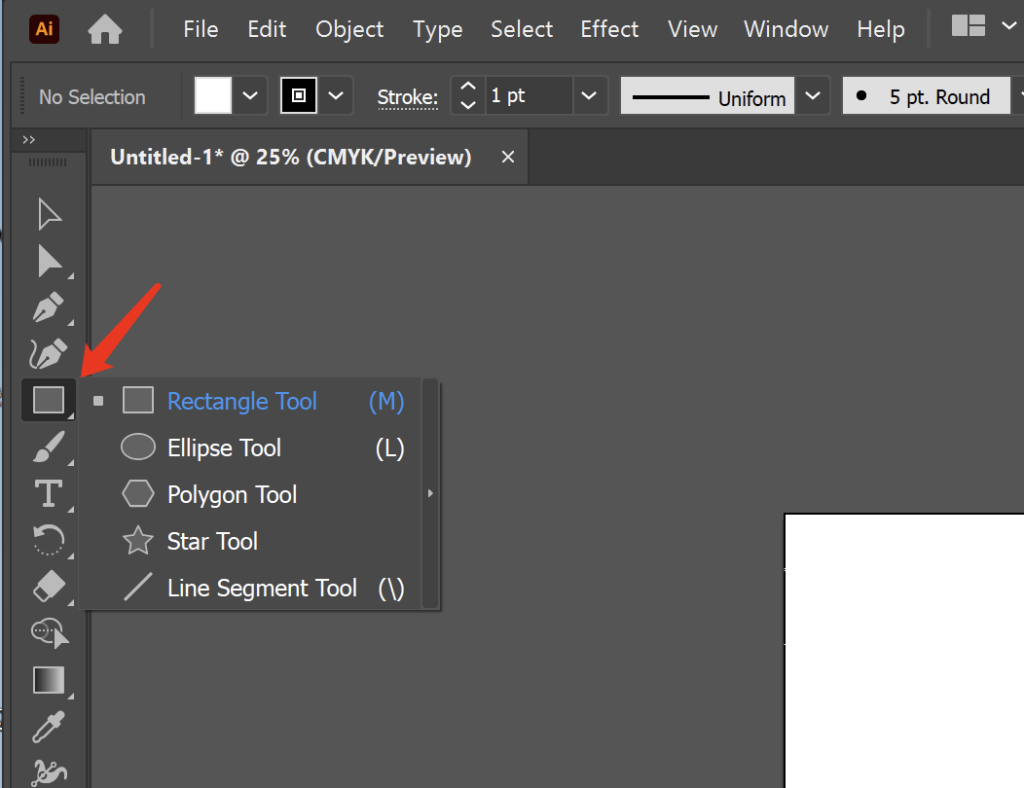
Shape tools (rectangles, circles, etc.) are a godsend for lazy people! You can draw standard shapes with a single click on the canvas, hold down the Alt key to draw from the center outwards, and hold down the Shift key to draw squares and circles. Drawing icons and card borders takes only a few seconds.
Experienced drivers’ secrets: Three tips to avoid detours
Alt key copy method
You absolutely must learn the Alt key copying technique! Select the shape, hold down the Alt key, and drag to instantly copy it—ten times faster than right-clicking and pasting. This trick can double your efficiency when creating repeating patterns or arranging multiple elements.
Panel groups can be customized
Panel groups are customizable; drag frequently used color and layer panels together, and close less frequently used ones by right-clicking. Remember to use the Window menu to retrieve accidentally closed panels, so don’t panic and think the software is broken.
Press Ctrl+Z to undo at any time
Undo anytime with Ctrl+Z! Beginners are most prone to making mistakes. If you see something you’re not satisfied with, immediately press Ctrl+Z to go back one step. You can undo up to dozens of steps. Be bold and try things out, don’t be afraid of messing up.
Now, doesn’t the Illustrator interface look much more familiar? It’s really like learning to drive; once you’re familiar with the steering wheel and brakes, the rest is just practice. Open the software and try drawing a few shapes; you can get the hang of it in half an hour!

Comments0